-
Connectivity 7
-
User Manual 16
-
General Question 6
-
System 7
-
Music & Streaming 7
-
General Guide 14
-
Hardware & Software Settings 7
Eversolo Streamers Static IP Configuration Guide

This tutorial applies to A6 and A8, here we use A6 as an example.
Friendly reminder: When connecting the DMP-A6 to the network cable, if the wired network menu shows that DHCP is on and it has successfully obtained an assigned IP address, you should be able to set a static IP address successfully in most cases.
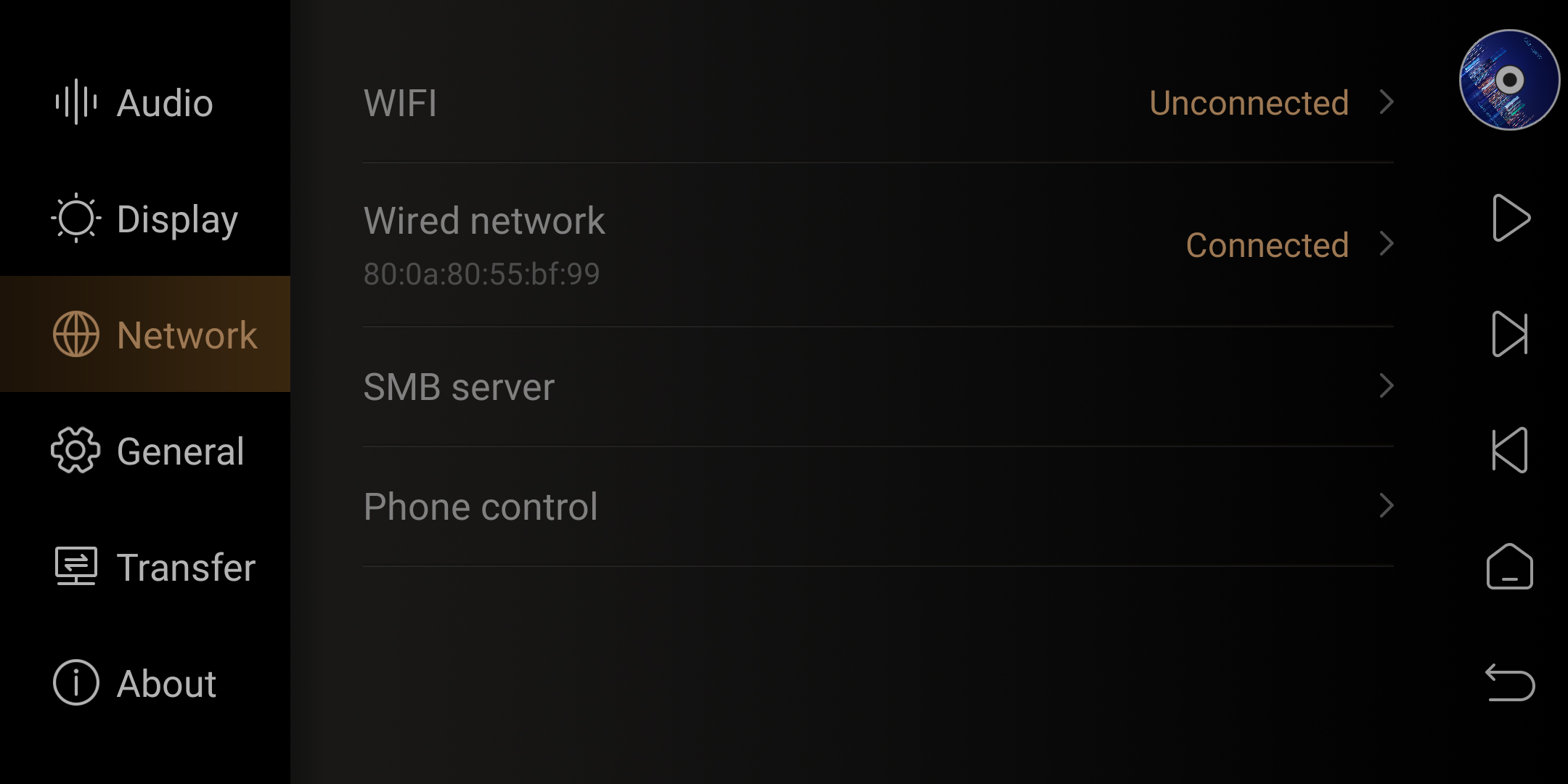
Operation Guide:
1. Go“Settings”- ”Network”- “Wired Network” from the main interface of DMP-A6.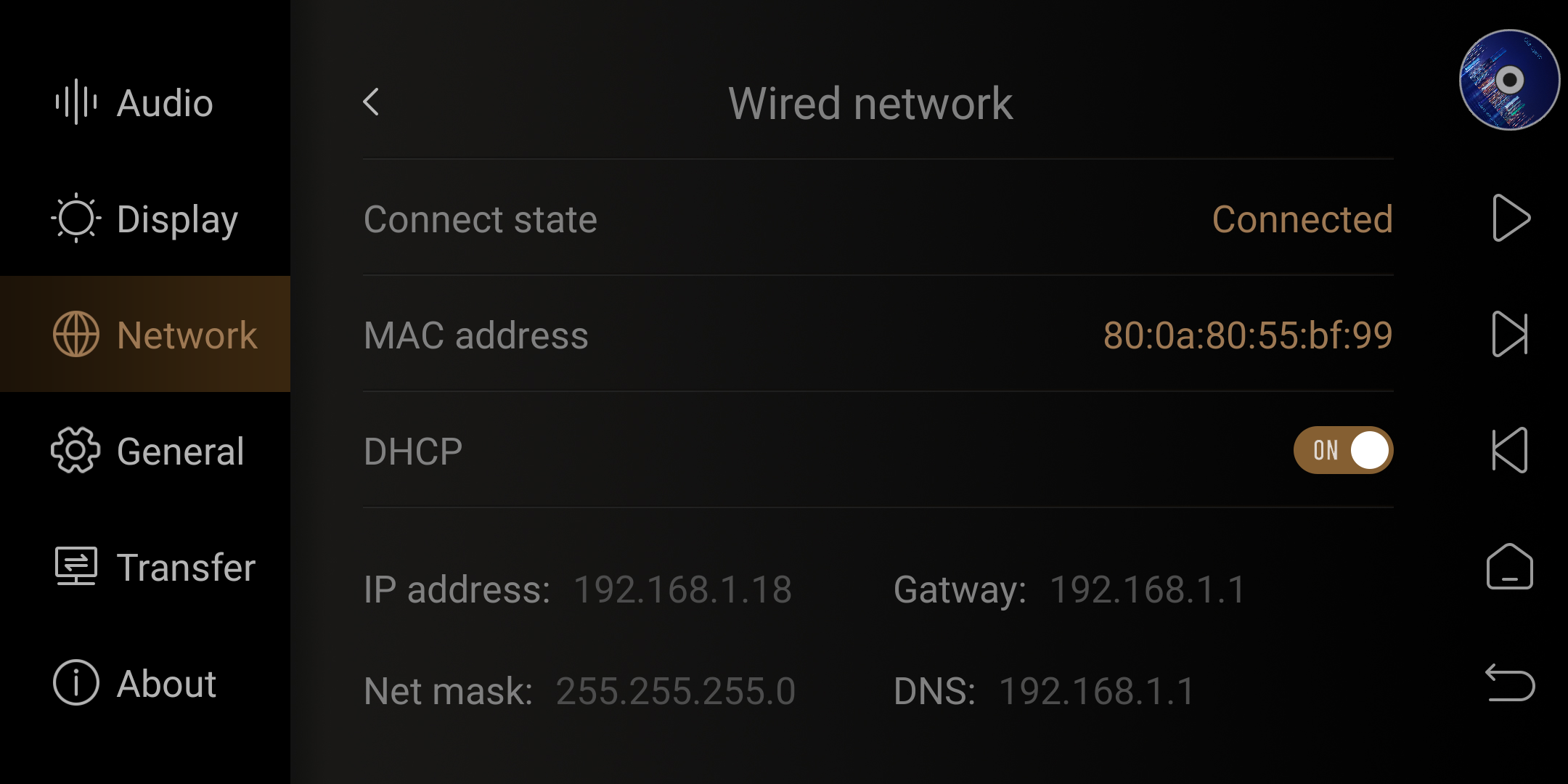
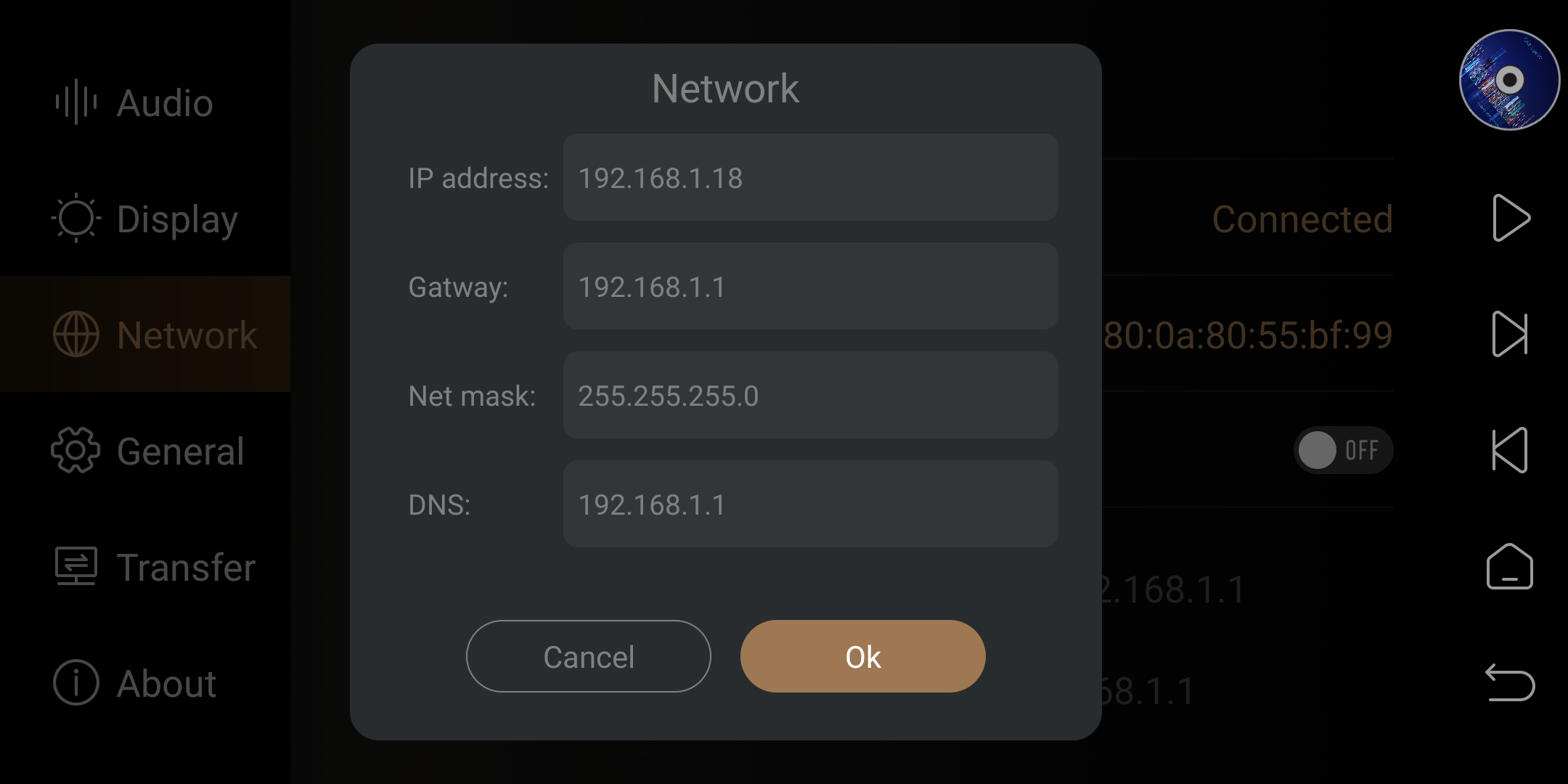
2.Click to disableDHCP, then a network settings menu will pop up, then customize and change the IP address (keeping other configuration options unchanged).
Friendly reminder: From left to right, the first three segments of the IP address remain the same (each person's network environment may have a different segment).
Only modify the last segment: 192.168.1.xxx (if the gateway IP ends with 1, you can set any number between 2 and 255 here). Alternatively, you can use the IP address previously assigned through DHCP, ensuring it doesn't conflict with other devices on the local network.
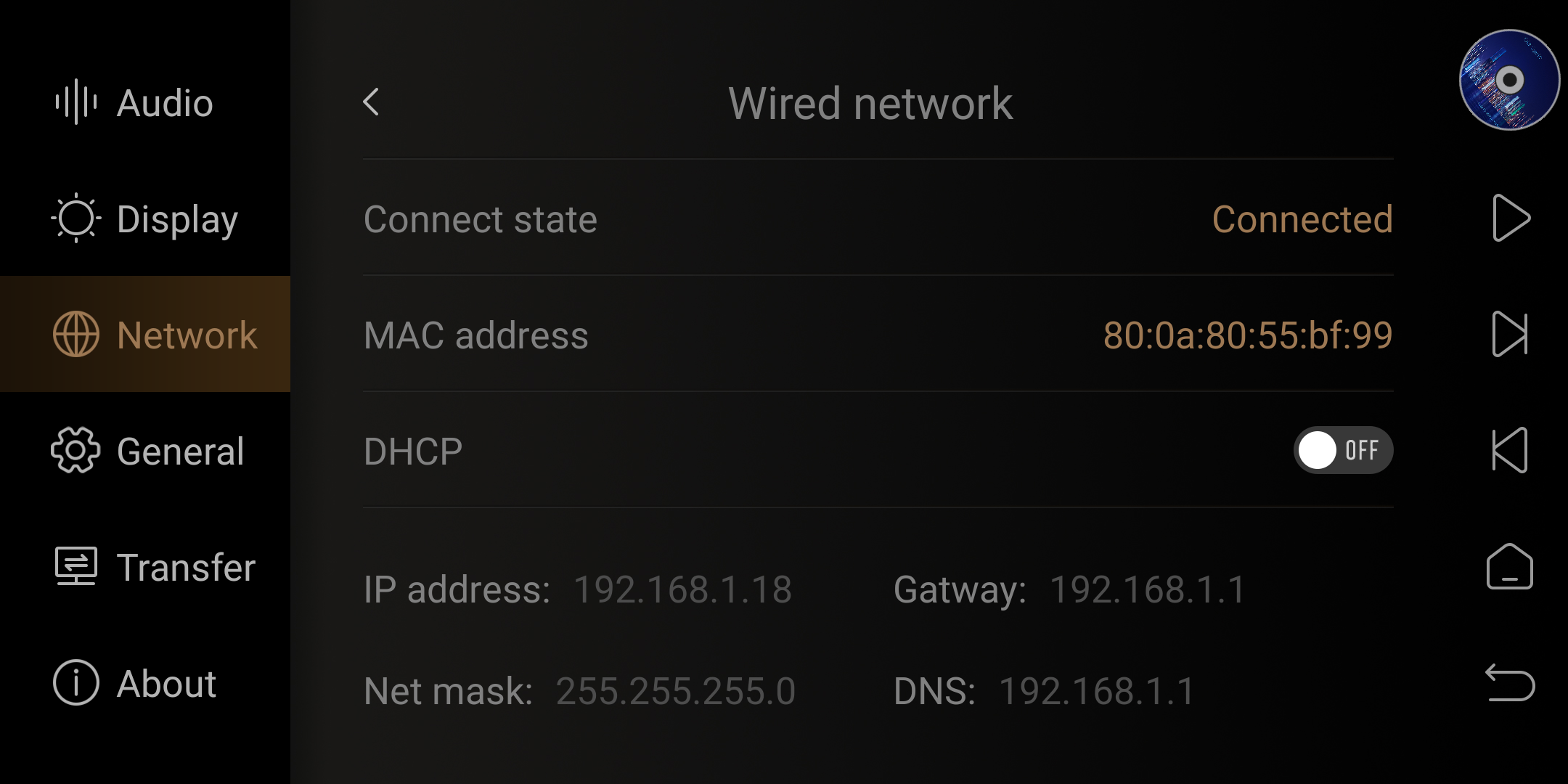
3. [See the image below] After completing the settings, click "OK". When the network status displays "Connected", it indicates that the setup was successful.